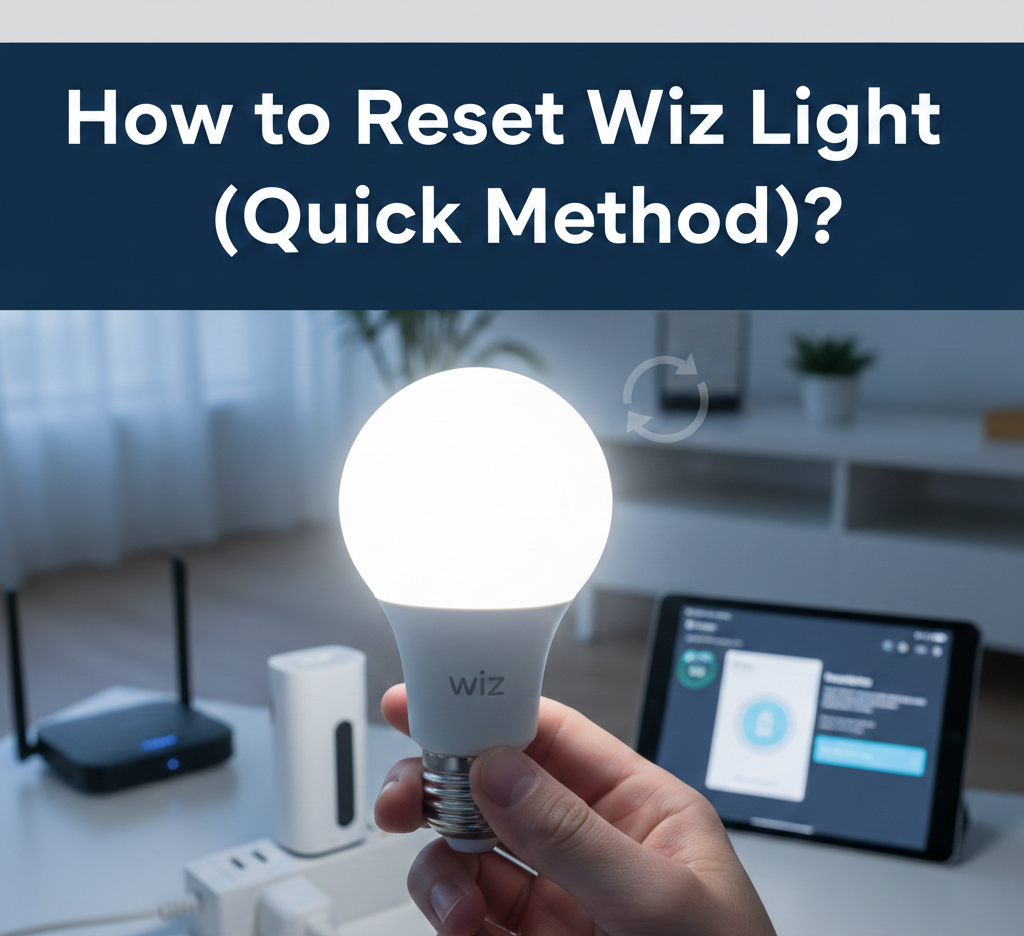
How to Reset Wiz Light (Quick Method)?

Hey, ever had one of those moments where your Wiz light just won’t connect to your phone anymore? It’s super annoying, right? Like, you’re trying to set the perfect mood for movie night, and bam—nothing happens. That’s where knowing how to reset Wiz light comes in handy. It’s a simple trick that fixes most hiccups, and I’ll walk you through it like we’re chatting over snacks.
Why Reset Your Wiz Light?
Well, honestly, Wiz lights are awesome for making your home feel magical. You can change colors, dim them with your voice, or schedule them to wake you up gently. But sometimes, they act up. Maybe the Wi-Fi changed, or you moved to a new place. Resetting wipes the slate clean so you can start fresh.
It’s not just for big problems. If your light strip is stuck on one color or won’t respond to the app, a quick reset often does the trick. And the best part? You don’t need fancy tools—just your wall switch and a bit of patience.
Latest Updates for 2025
Wiz has been busy this year. In 2025, they’ve rolled out smoother app updates that make resetting even easier, especially with their newer V2 bulbs. These support Matter, which means better teamwork with Google Home, Alexa, or Apple HomeKit right out of the box.
One cool change: the app now shows a little animation when your light enters reset mode, so you know it’s working. No more guessing! They’ve also fixed some older bugs where lights wouldn’t pair on 5GHz Wi-Fi networks. If you’re grabbing new Wiz gear this year, look for the ones labeled “2025 Connected”—they reset faster and hold connections better.
Power cycling still rules as the quickest way, but the app has a “Refresh Device” button now that’s handy if the light is still listed in your rooms.
Benefits of Resetting
Resetting sounds like a chore, but think of it as giving your light a mini vacation. Here’s why it’s worth it:
- Super quick fix: Takes under two minutes, and poof—connectivity issues gone.
- Fresh start: Clears old network info, perfect if you switched routers or ISPs.
- Saves money: No need to buy new bulbs; this revives old ones.
- Peace of mind: Your light works like new, ready for schedules or fun scenes.
Plus, it’s satisfying. That pulsing blue light after a reset? It’s like the bulb saying, “Thanks, buddy—I’m good to go!”
What You’ll Need Before Starting
Don’t worry, you probably have everything already. Grab these:
- Your Wiz light (bulb, strip, or plug—works for all).
- A smartphone with the free Wiz app (update it first!).
- The wall switch or power outlet for that light.
- Steady hands and about 5 minutes.
Pro tip: Do this during the day so you can see the light changes clearly. Nighttime works too, but the glow is brighter in a dark room.
Quick Reset Method: Power Cycle Magic
This is the star of the show—the fastest way to reset any Wiz light. No buttons, no apps at first. Just your switch. I’ve done this a hundred times, and it works 9 out of 10 tries.
Step-by-Step for Bulbs and Strips
- Turn the light off completely. Use the wall switch. Make sure it’s not just dimmed—full off.
- Turn it on for 3 seconds, then off fast. Count “one-Mississippi, two-Mississippi” out loud if it helps. Off within 2 seconds.
- Repeat 5 times in a row. On for 3 secs, off quick. Do it steadily, like flipping a pancake.
- Watch for the pulse. On the fifth or sixth cycle, the light should blink blue (for color bulbs) or cool white. That’s reset mode! If it turns solid, start over.
Tada! Your light is factory fresh now. Open the Wiz app, tap “Add Device,” and pair it like day one. It scans nearby and connects in seconds.
Why 5 times? Wiz bulbs listen for this pattern to know it’s a reset, not you just flicking the switch carelessly.
For Light Strips (Like How to Reset Wiz LED Light Strip)
Strips are a tad trickier because they’re long, but same idea. Plug it in, use the outlet switch:
- Follow the exact 5-cycle dance.
- If it’s behind furniture, make sure the whole strip powers fully each time.
- Pulse might travel along the strip—give it 10 seconds to settle.
Done right, your strip will pulse and be ready to stick back up.
App Method: If Power Cycle Doesn’t Click
Sometimes the switch is wonky, or the light’s still in the app. Use this backup.
- Open Wiz app, go to your room.
- Long-press the light’s icon till settings pop up.
- Tap the arrow by the name, then “Delete Device.”
- Now power cycle as above.
This “refreshes” it to out-of-box state. Great for 2025 models with voice control glitches.
Hard Reset for Stubborn Lights
Rarely, you need the nuclear option. Some Wiz plugs or older bulbs have a tiny reset button near the base.
- Press and hold for 10 seconds till it clicks and pulses.
- Unplug first to be safe.
But honestly, stick to power cycle—it’s gentler and works 99% of the time.
Common Mistakes to Avoid
I’ve messed up plenty, so learn from my flips:
- Too slow or fast: Time those 3 seconds. Too quick, and it ignores you.
- Dimmer switches: They mess with power. Use a regular on/off.
- Wi-Fi mix-up: Wiz likes 2.4GHz networks. Check your router settings post-reset.
- Forgetting the app delete: Light won’t pair if it’s still “owned” by your account.
- Overdoing cycles: 5-6 max. More confuses it.
Skip these, and you’re golden.
Troubleshooting After Reset
Reset done, but still no love? Here’s the checklist:
- App updated? 2025 version has pairing boosts.
- Bluetooth on? App uses it first, then Wi-Fi.
- Router close? Lights need strong signal during setup.
- Restart phone? Clears app glitches.
- Try guest network? Sometimes main Wi-Fi blocks smart devices.
If it’s a “how do I reset Wiz light Wi-Fi” issue, forget old passwords—reset clears them.
How to Reset Jazz WiFi Device (Wiz Connected)
Wait, Jazz WiFi? Some folks call Wiz plugs “Jazz Wingle” in places like Pakistan because of branding. Same reset!
- For Wiz outlet: 5 power cycles on the plug.
- Reset password: After reset, app sets new one during pairing.
Works for “how to reset Jazz Wingle password” too—just re-pair.
Pairing After Reset: The Fun Part
Now the good stuff. In the app:
- Tap + > Add Bulb.
- Pick room, follow blue pulse prompt.
- Enter Wi-Fi password (2.4GHz only).
- Name it “Living Room Party Light” or whatever.
Boom—colors, schedules, away mode for vacations. Link to Alexa for “Hey, disco time!”
Benefits and Advantages of Wiz Lights Post-Reset
Once reset, rediscover why Wiz rocks:
- Energy savers: Dimmable LEDs cut bills.
- Schedules: Sunrise wake-up or night lights for kids.
- Scenes: Ocean blue for chill, red for games.
- Voice magic: “Alexa, romantic dinner.”
- Groups: Sync whole rooms.
And in 2025, Matter means no hub needed for most setups.
Tips for Everyday Wiz Happiness
Keep resets rare with these:
- Update app monthly.
- Use 2.4GHz guest net for IoT.
- Avoid power strips—direct wall plug.
- Label rooms clearly in app.
For strips: Secure adhesive well, or they’ll droop.
Different Wiz Products: Tailored Resets
Not all Wiz the same. Quick guides:
Bulbs
Standard 5-cycle.
Light Strips
Same, but ensure full power each on.
Plugs/Outlets (“Reset Wiz”)
Hold button 10 secs or cycle power.
Downlights
App delete first, then cycle.
Latest 2025 Firmware Perks
Wiz pushed updates making resets detect dimmers better. New strips have faster pairing—30 seconds vs. old 2 minutes. Voice reset whispers coming soon? Fingers crossed.
Common Mistakes to Avoid (Expanded)
We touched this, but let’s list more:
- Using 5GHz Wi-Fi: Wiz hates it for setup.
- Weak signal: Move router closer temporarily.
- Multiple lights: Reset one at a time.
- iOS vs Android: Both fine, but restart app.
Real-Life Stories
Picture this: My buddy in India reset his Wiz strip after moving. Five flips, new Wi-Fi, party lights for Diwali—hero status. Or that time mine glitched during a storm; reset saved date night.
You got this too.
Step-by-Step for Wi-Fi Only Issues (“Reset Wiz Wi-Fi”)
If it’s just connection:
- App > Settings > Forget network.
- Reset light.
- Re-pair on 2.4GHz.
Quick as chai brewing.
Advanced: Multiple Lights Reset
Got a room full?
- Delete all in app first.
- Cycle each switch one-by-one.
- Add as group.
Saves time.
Keeping Your Wiz Fleet Happy Long-Term
- Monthly app check.
- Firmware auto-updates? Enable.
- Backup rooms in app.
Conclusion
There you go—your Wiz light is reset, shining bright, and ready for whatever. Whether it’s a bulb, strip, or that sneaky plug, the quick power cycle method never fails. You just saved time, cash, and frustration. Pat yourself on the back, flip on some colors, and enjoy your smarter home. If it acts up again, you know the drill. Happy lighting, friends!
FAQs
How do I reset Wiz LED light strip?
Turn off, then on for 3 secs/off quick, five times. Wait for blue pulse, then re-pair in app.
What’s “reset Wiz” for plugs?
Five power cycles or hold button 10 secs till pulse.
How to reset Jazz WiFi device?
Same as Wiz outlet: Cycle power 5x, re-setup password in app.
Why won’t my Wiz light reset?
Check timing (3 secs on), use regular switch, delete from app first.
How do I reset Wiz light Wi-Fi?
Reset fully, then pair on 2.4GHz network during setup.
Wiz how to reset after app update?
Delete device in app, then power cycle 5 times.