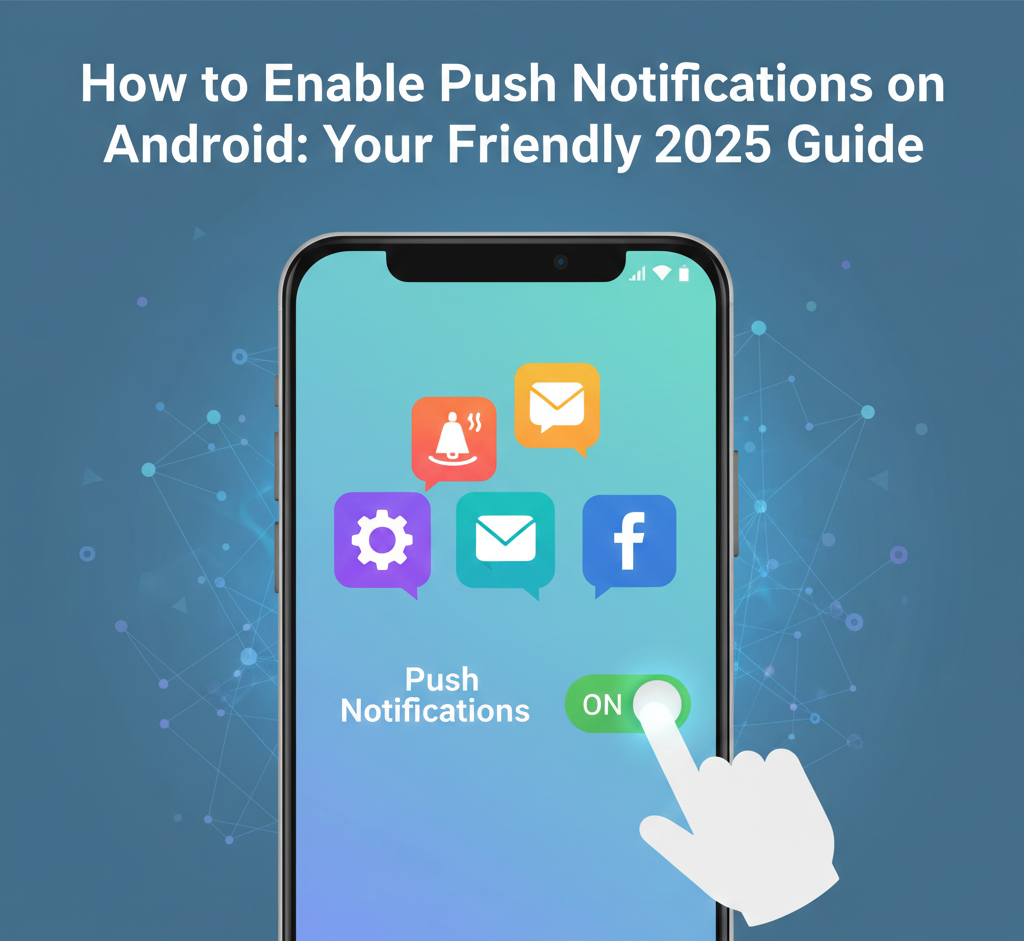
How to Enable Push Notifications on Android: Your Friendly 2025 Guide

Hey there! Ever had that moment when your phone stays quiet as a mouse, even though you know something exciting—like a PUBG squad invite or a buddy’s text—is waiting? That’s where push notifications come in. They’re those handy pop-up alerts that keep you in the loop without you having to check every app. Figuring out how to enable push notifications on Android is super easy once you know the tricks, and I’ll walk you through it like we’re chatting over snacks.
Push notifications are basically your phone’s way of saying, “Hey, heads up!” They show up on your lock screen, make a little buzz, or even light up your screen. Whether you’re on a Samsung, Motorola, or any other Android device, these steps work across the board in 2025. No fancy tech skills needed—just follow along, and you’ll be buzzing with updates in no time.
What Are Push Notifications, Anyway?
Picture this: You’re out grabbing ice cream, and bam—your phone vibrates to tell you your food delivery is two minutes away. That’s a push notification at work. These aren’t just random pings; they’re smart messages from apps like games, social media, or even your bank’s app, sent right to your phone even when the app isn’t open.
On Android, they use something called Firebase Cloud Messaging (FCM) behind the scenes, which Google keeps updating to make things smoother and safer. In 2025, they’re smarter too—apps can group them, add buttons for quick replies, or even show pictures. The cool part? You control everything, so no app can spam you unless you say okay.
Honestly, without them, you’d be glued to your screen refreshing apps all day. They save battery too, since the phone gets the message directly instead of constantly checking.
Why Bother Enabling Them? The Real Perks
Let’s be real—who wants to miss out on fun or important stuff? Enabling push notifications means staying connected without the hassle.
- Stay Ahead in Games: Think PUBG or other battle royales. Get instant invites or win alerts so you jump right back in.
- Never Miss Messages: WhatsApp, Signal, or email—know when friends reply without opening the app a million times.
- Life Savers for Apps: Ride-sharing like Uber pings your driver arrival; shopping apps flag flash sales.
- Productivity Boost: Calendar reminders or work tools nudge you at the perfect time.
- Battery Friendly: Modern Android optimizes them, so they sip power instead of guzzling it.
Plus, in 2025, they’re more customizable. You can pick sounds, vibrations, or even floating bubbles for quick peeks. It’s like having a personal assistant that doesn’t talk back.
Latest Android Updates for 2025: What’s New?
Android’s been tweaking notifications to make life easier, especially with Android 16 rolling out this year. Google focused on privacy and smarts—no more annoying interruptions during focus time.
One big change? Notification channels got even better. Apps now suggest “quiet zones” based on your habits, like muting during sleep. Samsung and Motorola added AI tweaks too—your Galaxy or Moto phone might auto-sort gaming pings separately from news.
For Android Go (light version for budget phones), enabling notification access is simpler with one-tap permissions. And Microsoft’s Authenticator app? It now pushes secure logins faster, perfect for two-factor auth without digging through settings.
Battery optimization is key in 2025. Apps like PUBG need “unrestricted” background access to push reliably, or they’ll doze off. Google Play Services updates automatically handle most of this, so keep that app current.
Well, these updates mean fewer headaches. Your phone learns what you like, grouping pings neatly so your screen doesn’t turn into a fireworks show.
Basic Steps: Enable Push Notifications on Any Android Phone
Ready to flip the switch? This works on most Androids from 2025, like Pixel, Samsung, OnePlus, or Motorola. We’ll start simple.
First, swipe down from the top of your screen to open Quick Settings. See the Notification icon? Tap it to tweak basics.
For the full setup:
- Open Settings (gear icon on your home screen or app drawer).
- Scroll to Notifications or Apps & Notifications (names vary by brand).
- Tap App Notifications or See All Apps.
- Pick the app—like Messages or PUBG.
- Toggle Allow Notifications to ON. Boom—push enabled!
Inside the app menu, you might see categories like “Chats” or “Game Alerts.” Turn those on too for finer control.
Pro tip: If it’s grayed out, check Notification Access under the main Notifications menu. Some apps need extra permission.
This shot shows a typical Samsung notifications screen—easy to spot the toggles, right? Now your phone’s ready to ping away.
Samsung-Specific Guide: How to Enable Push Notifications on Android Samsung
Samsung phones like the Galaxy S25 or A-series have One UI, which adds fun extras. Their notification system shines with Edge Lighting—those glowing borders around alerts.
Here’s the Samsung way:
- Head to Settings > Notifications > App Notifications.
- Choose your app (say, for Samsung Internet or Games).
- Flip Show Notifications ON.
- Tap Categories to pick sounds or badges.
For push in apps like PUBG on Samsung:
- Open PUBG > Profile > Settings > Notifications > Enable All.
Missed pings? Check Do Not Disturb (DND)—tap the moon icon in Quick Settings and add exceptions for key apps.
Samsung’s Game Launcher auto-optimizes pushes during play, so alerts don’t interrupt mid-battle. In 2025, Bixby Routines let you auto-enable pushes for work hours.
Test it: Ask a friend to message you or join a PUBG lobby. If no buzz, dig into Battery > Background Usage Limits and set your app to “Unrestricted.”
Motorola Android Phones: Quick Setup
Moto phones keep it stock Android-ish but with Moto Gestures for extra flair. Enabling push is straightforward.
Steps for Motorola like Edge or G-series:
- Settings > Apps > See All Apps.
- Select app > Notifications > Turn ON Allow Notifications.
- For push-heavy apps, tap Advanced for lock screen options.
Moto’s twist? Ready For mode pushes desktop alerts to your PC. And in 2025, their Moto AI suggests notification tweaks based on usage.
Common snag: Moto’s Adaptive Battery might pause apps. Fix: Settings > Battery > App Optimization > Your App > Don’t Optimize.
PUBG on Moto? Enable in-game notifications via app settings, then confirm in phone notifications.
Enabling for Specific Apps: Microsoft Authenticator and More
Some apps like Microsoft Authenticator need extra love for secure pushes.
How to Enable Push Notifications on Android for Microsoft Authenticator:
- Open Authenticator app > Settings (three dots) > Notifications > Turn ON.
- Go to phone Settings > Apps > Authenticator > Notifications > Enable All.
- Under Battery Optimization, exclude it to keep pushes coming 24/7.
Why? Authenticator pushes login approvals—super handy for banking or work logins. In 2025, it supports biometric confirms right from the notification.
For how to enable push notifications for an app on Android generally:
- App-side: Open app > Settings > Notifications > ON.
- Phone-side: As above.
PUBG example: Push Notifications PUBG—in-game, toggle “Match Found” and “Clans.” Then phone settings to allow.
Android Go: How to Enable Notification Access
Budget phones run Android Go—light and fast. Steps are similar but simplified.
- Settings > Apps & Notifications > Special App Access > Notification Access.
- Toggle for your app.
- Back to Notifications > App Notifications > Enable.
2025 update: One-tap during app install. Great for Go editions on entry-level phones.
Benefits of Push Notifications: Why They’re a Game-Changer
We touched on perks, but let’s dive deeper. They’re not just bells and whistles.
First, time-savers. No more app-hopping; pings bring info to you.
Second, engagement magic. Studies show users who enable pushes open apps 3x more. Games like PUBG thrive—88% retention from timely alerts.
Third, safety net. Weather warnings, low battery, or family locator pings keep you secure.
Customization rocks: Pick vibration patterns (short for texts, long for games), colors on Always-On Display, or reply quick-actions.
Downside? Overload. But Android’s 2025 grouping stacks them neatly—tap to expand.
Business side: Apps get better ratings when pushes work right. Win-win.
Common Mistakes to Avoid When Enabling Pushes
Nobody’s perfect, but these slip-ups cause most woes.
- Forgetting Battery Opt-Out: Apps doze if optimized. Always Settings > Battery > Your App > Unrestricted.
- DND Trap: It silences everything. Customize exceptions: Settings > Sound & Vibration > Do Not Disturb > Apps.
- Ignoring App Permissions: During install, tap “Allow Notifications.” Miss it? Retro-fix in settings.
- Outdated Play Services: Update via Play Store > My Apps > Google Play Services.
- Lock Screen Blocks: Settings > Notifications > Lock Screen > Show Content for previews.
- Spam Overload: Start with key apps only; mute the rest later.
Humor alert: Don’t be that guy who enables pushes for 50 apps and wonders why your phone’s vibrating like a beehive!
Troubleshooting: Fixes for “Push Notifications Not Working”
Pings ghosting you? Let’s fix it step-by-step.
Quick Checks:
- Restart phone (hold power button > Restart).
- Update app and Android (Settings > System > System Update).
- Clear app cache: Settings > Apps > Your App > Storage > Clear Cache.
Deeper Dive:
- Notifications Off? Double-check toggles.
- Adaptive Connectivity: On Pixels, Settings > Network & Internet > Adaptive Connectivity > Off.
- VPN Interference: Disable any VPN temporarily.
- Auto-Sync Off: Settings > Accounts > Auto-Sync Data > ON.
For Samsung/Moto: Reset notification settings via Settings > Notifications > Reset.
PUBG specific: Reinstall if pushes fail—common with large updates.
If all else fails, Settings > Apps > See All > Disable/Enable the App. Works wonders.
Customizing Your Push Experience Like a Pro
Once enabled, tweak for fun!
- Sounds & Vibes: Pick per app—meows for reminders, epic tones for games.
- Bubbles: Settings > Notifications > Bubbles > All Apps for floating chats.
- Categories: Marketing? Mute. Friends? Priority.
- Schedules: Quiet hours via DND or app timers.
2025 gem: AI previews—long notifications summarize before you tap.
Samsung Edge Panels add swipeable alerts; Moto Gestures chop for quick silence.
Gaming Pushes: PUBG and Beyond
Gamers, listen up! “Push notifications PUBG” searches spike for a reason.
In PUBG Mobile:
- Menu > Settings > Notifications > Enable Matchmaking, Wins, etc.
- Phone settings confirm.
- Battery: Unrestricted.
Alerts for crates, seasons, or squad joins keep you hooked. Other games like COD follow suit.
Tip: Enable only during off-hours to avoid battle distractions.
Advanced Tips for Power Users
Want next-level?
- Notification History: Settings > Notifications > Notification History—revive old pings.
- Channels Deep-Dive: Apps list them; rename or mute.
- Third-Party Apps: Like Tasker for custom rules (e.g., vibrate only for boss emails).
- Privacy Shields: Hide sensitive previews on lock screen.
For devs (if you’re tinkering): FCM tokens refresh—handle in code.
Worldwide note: In Pakistan or India, data-saving modes kill pushes. Switch to Wi-Fi or tweak Data Saver (Settings > Network > Data Saver > Allow App).
Wrapping It Up: Your Phone, Your Rules
There you have it—everything from basic flips to pro tweaks for push notifications on Android. Whether it’s a Samsung buzzing with PUBG wins, a Motorola pinging work emails, or Authenticator securing your accounts, you’re now the boss. Start with one app, test it out, and watch your phone come alive without overwhelming you.
Go on, enable a few right now—you’ll wonder how you lived without them. Got a favorite app that needs rescuing? Drop a comment (in your head, since this is an article), and keep your notifications friendly. Happy buzzing!
FAQs
How do I enable or disable push notifications on my Android device?
Easy—Settings > Notifications > App Notifications, toggle the app. Disable the same way for peace.
How to enable push notifications on Android Samsung?
Settings > Notifications > More Settings > App Notifications > Select app > ON. Check DND too.
How do I enable push notifications on my phone?
Same for any Android: Settings > Apps > Your App > Notifications > Allow.
Enable push on Android for PUBG?
In PUBG settings first, then phone notifications. Unrestrict battery.
How to enable notification access on Android Go?
Settings > Special App Access > Notification Access > Toggle app ON.
Why aren’t my push notifications working after enabling?
Check battery optimization, DND, and updates. Restart fixes most.